
1 Getting started with R
1.1 Learning outcomes
After this chapter, you should be able to explain the roles of R and RStudio in agricultural research, identify the observations and units in an agricultural dataset, create an RStudio project, run and save commands, and install and load a package.
1.2 R and RStudio in agricultural research
Agricultural researchers collect observations to answer practical questions: Does a new variety yield more? How do soil nutrient levels vary between fields? What is the response to fertilizer? How does a crop grow through the season? This book teaches you to address such questions using R for analysis and RStudio as your working environment. You will learn to organize observations, inspect their quality, calculate summaries, draw useful graphs, fit appropriate statistical models, and explain the results in agricultural terms.
1.2.1 What R does and what RStudio provides
R is a programming language and environment for statistical computing and graphics. You give it instructions, store observations as objects, and use functions to carry out calculations. An R script records those instructions so you can check an analysis, correct a mistake, or repeat the work with a new dataset. Packages add functions for tasks such as importing Excel files, manipulating data, plotting, and analysing experiments.
RStudio is the interface used for the practicals in this book. Its script editor helps you write and save R commands; its Console runs them; and its supporting panes let you inspect objects, browse files, view plots, and read help. R performs the calculations. RStudio helps you manage the work. Install R first, then RStudio, and keep each research project in its own folder.
Agricultural scientists and students need not become professional software developers. They should, however, understand the commands they use, the observations entering an analysis, and the meaning of its output. Learning R through a research question gives each command a purpose.
1.2.2 Applications across agricultural research
The following examples show how the skills developed in this book contribute to agricultural investigations.
| Agricultural question | Observations to organize | Work you will do in R |
|---|---|---|
| Do varieties or management treatments differ in yield? | Plot identifiers, treatments, blocks or replicates, and yield with its units | Inspect treatment variation, draw comparative plots, and analyse treatment effects using the experimental design. |
| How do soil characteristics vary between fields? | Sampling locations, depth, pH, organic carbon, and nutrient measurements | Check missing values and unusual observations, summarize soil properties, and explore relationships. |
| How does a crop grow during the season? | Plant or plot identifiers, observation dates, and growth measurements | Plot growth trajectories, fit growth models, and interpret their parameters. |
| How do rainfall and temperature vary over time? | Dates, rainfall, temperature, and measurement units | Visualize time series, examine trends and seasonality, calculate moving averages, and assess forecasts. |
Begin by identifying what each row represents. A plot, plant, soil sample, and repeated measurement are different observational units. Preserve treatment and replicate identifiers when importing or cleaning data. Repeated observations on the same plant or plot must not be treated automatically as independent replicates. R can calculate a result even when the data structure or analysis is inappropriate; the researcher must choose a method consistent with the question and design.
1.2.3 From a field notebook to a reproducible analysis
A useful R workflow follows the research process:
- Organize: define variables and units, retain the original observations, and import a working copy into R.
- Inspect: check data types, missing values, duplicates, and possible entry errors before changing the data.
- Explore: use numerical summaries and plots to understand variation and relationships.
- Analyse: choose a statistical method suited to the experimental design and check its assumptions.
- Communicate: report estimates and uncertainty with an agricultural interpretation, then save the script and exported results.
Software supports statistical reasoning; it does not replace it. Strengthen your understanding of sampling, experimental design, and statistical inference alongside the R practicals. My Textbook of Agricultural Statistics provides a companion reference for the statistical concepts. The chapters that follow develop this workflow through detailed R commands, worked agricultural examples, and practical exercises.
RAISINS is a browser-based platform that offers a graphical route to agricultural data analysis, including statistical summaries and experimental-design analyses. It can complement learning in R by letting students compare a guided analysis with their own R script. Whatever interface is used, students must check the design, assumptions, and interpretation of the results.
1.3 R and RStudio: the illustrated guide
Using the illustrated installation guide
The download screenshots below were updated on 16 October 2026. The original pane illustration is labelled as historical. Release numbers and screen layouts change; use the official download links given in the text.
This training program is tailored to equip you with the skills needed for agricultural data analysis using R and RStudio. In this introductory section, we will provide you with a brief overview and guide you through the process of installing R and RStudio.
1.3.1 R
R is a programming language for statistical computing and graphics supported by the R Core Team and the R Foundation for Statistical Computing. Created by statisticians Ross Ihaka and Robert Gentleman. R is an implementation of the S programming language. R is used among data miners, bioinformaticians and statisticians for data analysis and developing statistical software. Users have created packages to augment the functions of the R language. According to user surveys and studies of scholarly literature databases, R is one of the most commonly used programming languages used in data mining. The official R software environment is an open-source free software environment within the GNU package, available under the GNU General Public License. It is written primarily in C, Fortran, and R itself (partially self-hosting). R has a command line interface. Multiple third-party graphical user interfaces are also available, such as RStudio, an integrated development environment.
1.3.2 Rstudio
RStudio is an integrated development environment (IDE) for R. It includes a console, syntax-highlighting editor that supports direct code execution, as well as tools for plotting, history, debugging and workspace management. RStudio is available in open source and commercial editions and runs on the desktop (Windows, Mac, and Linux) or in a browser connected to RStudio Server. RStudio is a free and open-source integrated development environment (IDE) for R, a programming language for statistical computing and graphics. JJ Allaire, creator of the programming language ColdFusion, founded RStudio. RStudio is available in two editions: RStudio Desktop, where the program is run locally as a regular desktop application; and RStudio Server, which allows accessing RStudio using a web browser while it is running on a remote Linux server.
The original RStudio interface used the Qt framework; the current desktop application uses Electron. RStudio combines components written in several programming languages. Work on RStudio started at around December 2010, and the first public beta version (v0.92) was officially announced in February 2011.

Typical RStudio window has four panes as explained below
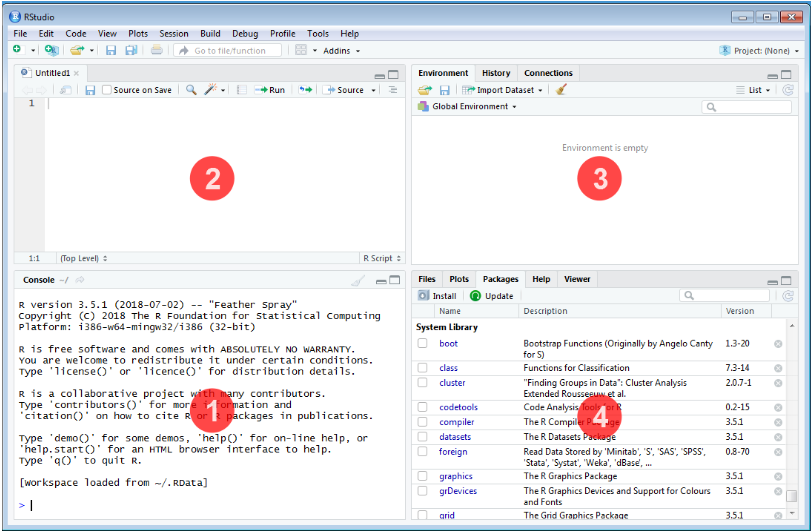
- Console
This is where the action happens. Here any authentic R code typed after the ‘>’ prompt will be executed after pressing ‘Enter’ to generate the output. We will use the Console to run and inspect the commands developed in this book.
- Source Editor
This is where R scripts (collection of code) can be created and edited. New R script can be opened by clicking File –> New File –> R Script or using short cut ctrl+shift+N. You can type your codes here. To run a code in console or execute, place the cursor in the line which code is written and press ctrl+enter or highlight the code you wish to evaluate and clicking on the “Run” button on the top right of the Source. You can save your R codes, written in script.
- Environment|History|Connections
All of the data objects (such as vectors, matrices, and dataframes) that you have defined in your current R session are listed under the Environment tab of this panel. In data objects, you may also examine details like the quantity of observations and rows. A few other clickable options are available on the tab, such as Import Dataset, which will launch a graphical user interface (GUI) for inputting data into R.
This panel’s History tab only provides a history of all the code that you have previously evaluated in the Console.
The Environment / History panel could be helpful as you become more accustomed to R. However, you can ignore it right now. You can simply just reduce the window by clicking the minimise button in the panel’s upper right corner if you wish to clear up space on your screen.
- Files|Plots|Packages|Help|Viewer
You can find a collection of useful information in the Files|Plots|Packages|Help panel. Let’s examine each tab in more detail:
- The file directory on your hard disc is accessible through the files panel. You can utilise the “Files” panel to set your working directory by clicking “More” and then “Set As Working Directory” once you’ve navigated to the folder where you wish to read and save files.
- All of your plots are displayed in the Plots panel. There are buttons to export the plot as a pdf or jpg and to open the plot in a separate window.
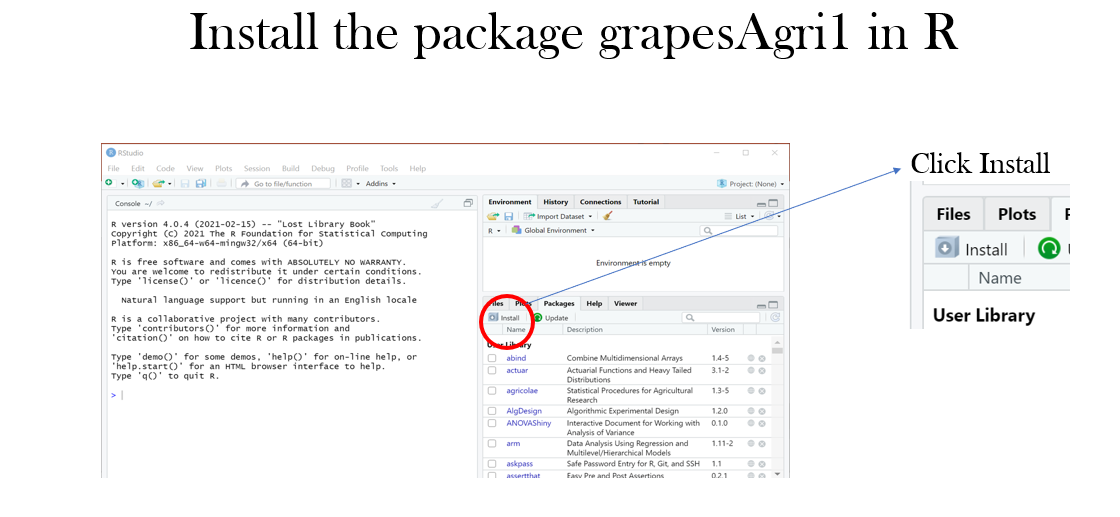
We are interested in the install button in this pane, to install packages required for our analysis.
1.3.3 Installing the current R release
Installation guide updated 16 October 2026
At the date of this update, CRAN offers R 4.6.1 for Windows and Posit offers RStudio Desktop 2026.10.0, build 233. The screenshots below are genuine captures of the official download pages on that date. Download the stable release displayed when you study this chapter; the version number will change. These are download-page screenshots, rather than screenshots of an installer running on your computer.
Install R first, then RStudio Desktop. R performs the calculations; RStudio provides the editor and working environment.
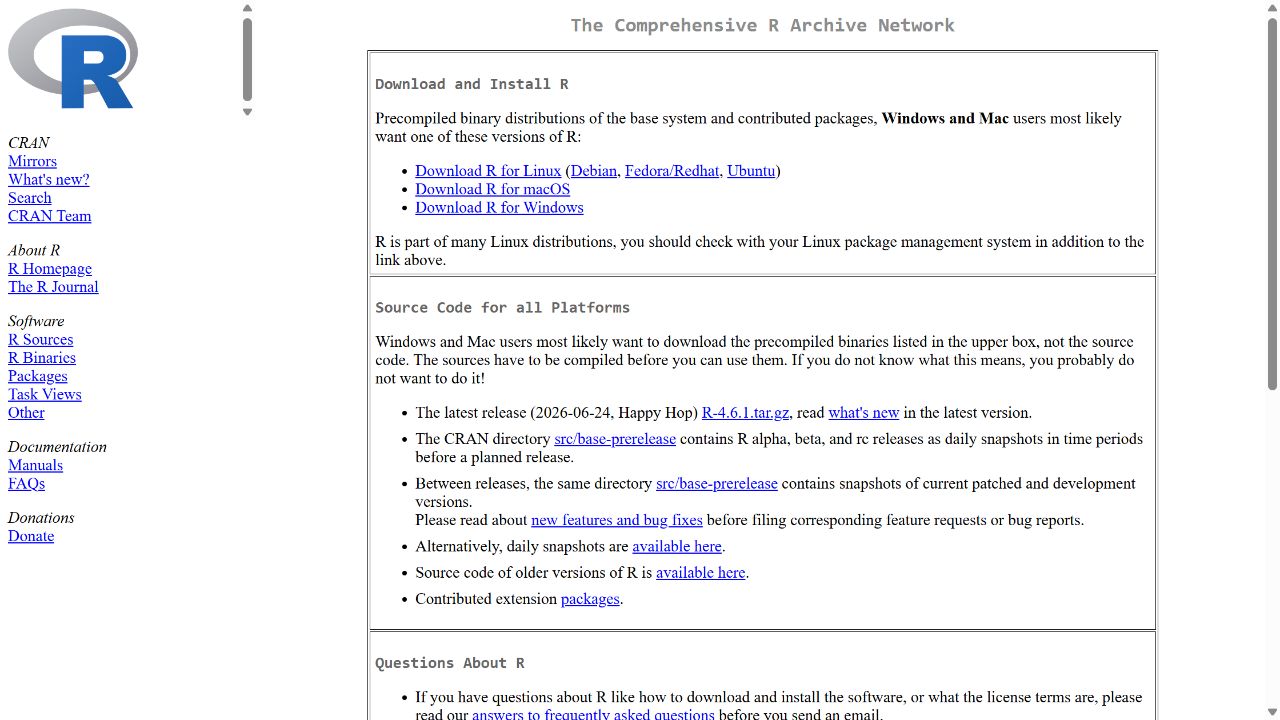
1.3.3.1 Step 1: choose your operating system
Open CRAN. Choose Download R for Windows on a Windows computer. macOS users should select the macOS download and the installer appropriate to their processor; Linux users should follow CRAN’s instructions for their distribution.
1.3.3.2 Step 2: choose the base installation
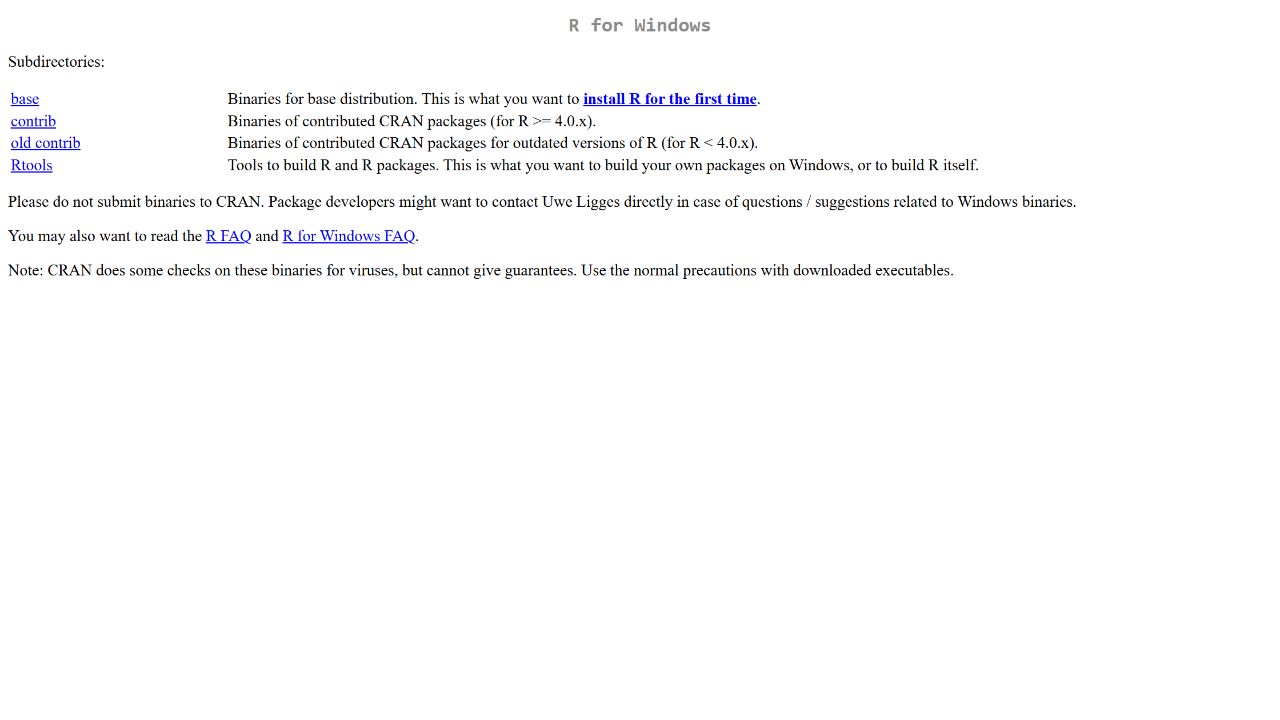
On the Windows page, select base or install R for the first time. Rtools is a separate collection of build tools; it is not the R application. Students installing precompiled Windows packages can begin with base R.
1.3.3.3 Step 3: download and install R
Open the current Windows release page and select its Download R link. At this update it offers R 4.6.1. Check the operating-system requirement on the page: the current R Windows release requires Windows 10 or later and the Universal C Runtime (UCRT).
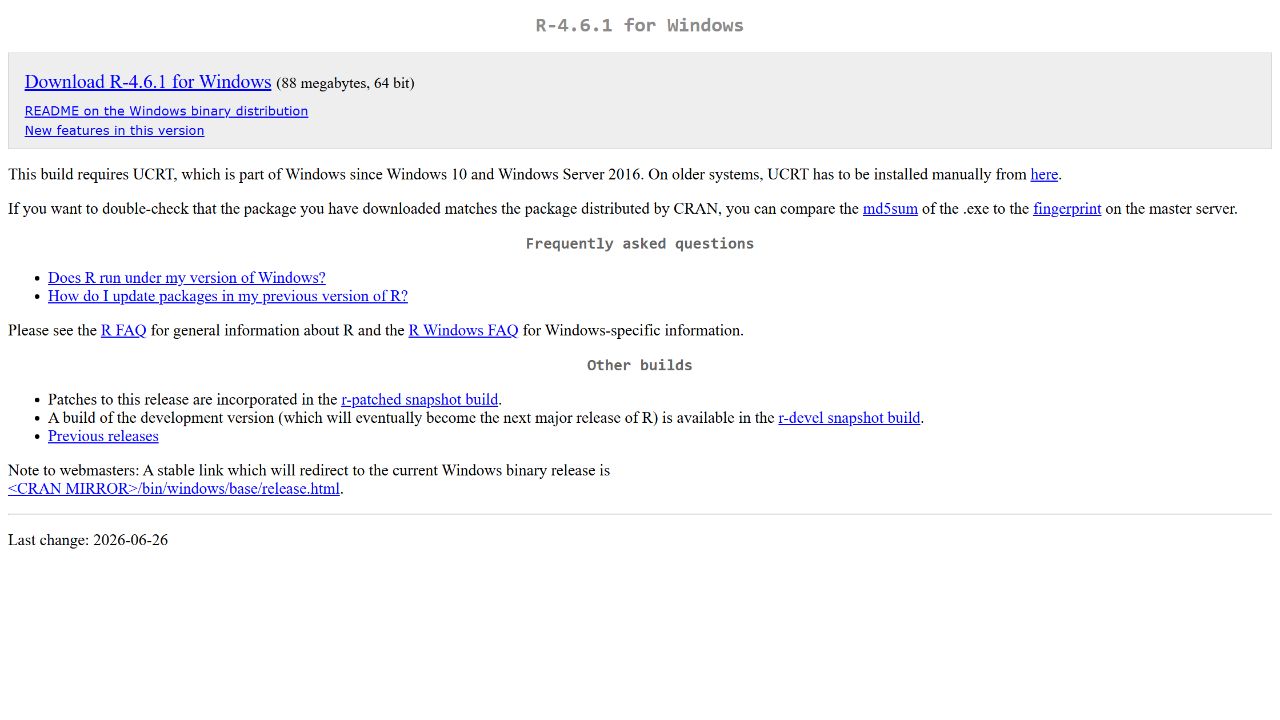
After downloading, open the installer from your Downloads folder. Select the installation language, read the installation information, and follow Next through the destination and component choices. The defaults are suitable for a typical first installation. Allow installation to finish, then select Finish. Open R from the Start menu to confirm that its console launches. The exact installer screens depend on the release and your system permissions; an institution-managed computer may require laboratory support.
1.3.4 Installing RStudio Desktop
1.3.4.1 Step 4: download the free desktop edition
Open the official RStudio download page. Choose RStudio Desktop, then the installer matching your operating system. The current Windows card lists Windows 11; do not assume RStudio and R have identical operating-system requirements. Select the open-source Desktop installer, rather than the Server or commercial Pro editions, for the course.
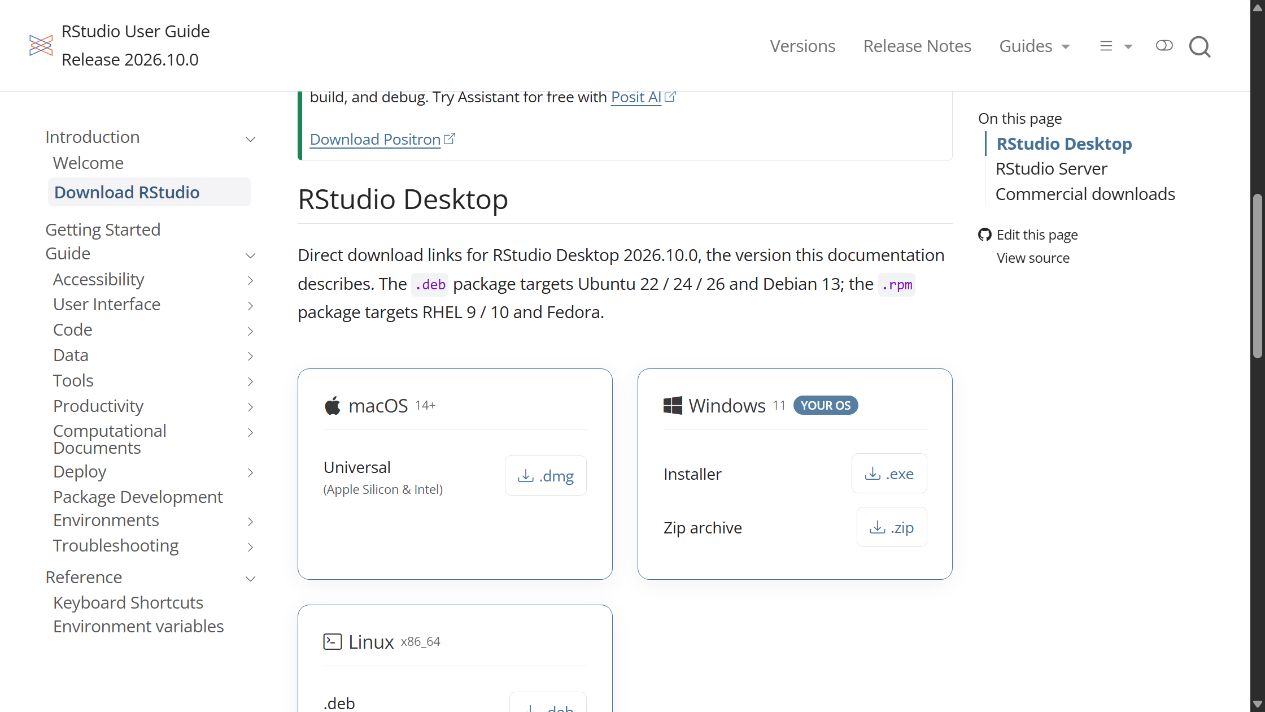
Run the downloaded RStudio installer and follow its installation steps. Launch RStudio after completion. RStudio should detect the installed R; if asked to select an R installation, choose the current installation you just installed. On macOS, open the downloaded disk image and follow the application’s installation instructions. Linux users should select the package for their distribution.
1.3.4.2 Step 5: verify the R session
Type the following in RStudio’s Console, without typing the > prompt. These commands report the version actually running on your computer and perform a small calculation.
R.version.string[1] "R version 4.5.2 (2025-10-31 ucrt)"2 + 3[1] 5The version printed in this textbook’s rendered output is the R installation used to build the book; it need not match the latest downloadable release. Your calculation should return 5.
Create a script with File → New File → R Script, enter 2 + 3, and press Ctrl+Enter (Windows/Linux) or Command+Enter (macOS). Save the script as first-practical.R. If the Source pane is initially absent, opening a script reveals it. The Console, Source, Environment, and Files/Plots/Help areas are described above; modern RStudio also supports an optional Sidebar and customizable pane layouts. See the current official pane guide.
Checkpoint before the first practical
You can open RStudio, run 2 + 3, save an R script, and identify the R version in your Console. Next create a course project and install the packages used in the practicals. Keep an internet connection for the initial package installation.
The original installation pictures are retained with the archived lecture notes in source-notes/ and images/downloadR/; the teaching instructions above use the updated download pages.
The above descriptions are sourced from:
The R Project for Statistical Computing
1.4 Packages and libraries
1.4.1 Packages
Packages are organised collections of R functions, data, and compiled code. Packages have useful functions to perform specific tasks. Some of the useful packages for agricultural research are agricolae, grapesAgri1 etc.
In the R environment, packages are kept in a directory called “library”. R installs a group of packages by default during installation. Only the default packages are initially available once the R console has been launched. The R application that is getting to use other installed packages needs to be explicitly loaded from package library in order to use them.
1.4.2 Repositories
A repository is where packages are located so that they can be installed from it. Organizations and developers each have their own local repository, which is often online and open to all. The most well-liked R package repositories include: CRAN, BIOCONDUCTOR, GITHUB.
1.4.2.1 CRAN
Comprehensive R Archive Network(CRAN) is the official repository, It is an international network of ftp and web servers run and managed by the R community. It is coordinated by the R community, and before a package can be published in CRAN, it must pass a number of tests to guarantee that it complies with CRAN rules.
1.4.2.2 Bioconductor
Open source software for bioinformatics is designed for the topic-specific repository known as Bioconductor. In keeping with CRAN, it has its own submission and review procedures, and its community is quite active, holding numerous conferences and meetings each year.
1.4.2.3 Github
The most well-known repository for open source projects is Github. Its popularity is due to the unrestricted open source storage space, integration with the version control programme git, and simplicity of sharing and teamwork.
1.4.3 Base packages
Base packages or standard pacakges come pre-installed with R installations and are regarded as being a part of the R source code. The fundamental R functions are found in base packages, which make it possible to perform common statistical and graphical operations on datasets. Examples of Base packages include stats, graphics, grDevices, utils, datasets, methods and base. The functions available in these Base packages can be used for basic operations on the data set. Some of the functions we have discussed earlier in Section Chapter 2, like mean(),min, log10,as.data.frame etc.
The standard installation contains base packages for essential language, statistical, graphics, and utility functions. The exact installed list can be inspected with installed.packages().
In addition, there are fifteen “recommended packages” from CRAN which are included with binary distributions of R: KernSmooth, MASS, Matrix, boot, class, cluster, codetools, foreign, lattice, mgcv, nlme, nnet, rpart, spatial, and survival.
1.4.4 Other packages
Any user could develop a package and make it available through any of the repositories. There are thousands of helpful R packages.
1.4.5 Installing R Packages
There are numerous ways to install R Packages, which are listed below. You need an active internet connectivity for installing packages.
1.4.5.1 From CRAN
Installing Packages From CRAN: For installing Package from CRAN we need the name of the package and use the following command:
install.packages("package name") Simply express package name as a character vector in the first argument of the install.packages() function to install more than one package at once:
install.packages(c("grapesAgri1", "MASS")) 1.4.5.2 From Bioconductor
Bioconductor provides packages for biological data analysis. The original notes used biocLite(). That installation mechanism has been replaced by BiocManager. The distinction between installing its manager and installing a selected package remains useful.
if (!requireNamespace("BiocManager", quietly = TRUE)) {
  install.packages("BiocManager")
}
BiocManager::install(c("GenomicFeatures", "AnnotationDbi"))
Consult the official Bioconductor installation guide for compatibility with your R version. These optional examples are not executed while building the textbook.
1.4.5.3 From github
To install a R package from github, start by installing the devtools package. The best way to do this is from CRAN.
install.packages("devtools") Install the package of interest from GitHub using the following code, where you need to remember to list both the author and the name of the package. In this example, we are installing the grapesAgri1 package created by pratheesh3780.
devtools::install_github("pratheesh3780/grapesAgri1") 1.4.6 Load packages
Once you successfully install an R package; you need to load the package for use in the session. library() function can be used to load package.
Example
library(grapesAgri1)1.4.6.1 Load Multiple Packages at Once
We need to first specify a vector of package names:
my_packages <- c("dplyr", "mice", "stringr") # vector of package names
lapply(my_packages, require, character.only = TRUE)    # Load multiple packages
After running the code, inspect the returned logical values: require() returns FALSE for packages it could not load. Do not assume that every package loaded successfully.
1.4.7 Check, Update and Remove
To check what packages are installed on your computer, type this command:
installed.packages() To update all the packages, type this command:
update.packages() To update a specific package, type this command:install.packages("package name")
install.packages("grapesAgri1") 1.4.8 Installation using R studio UI
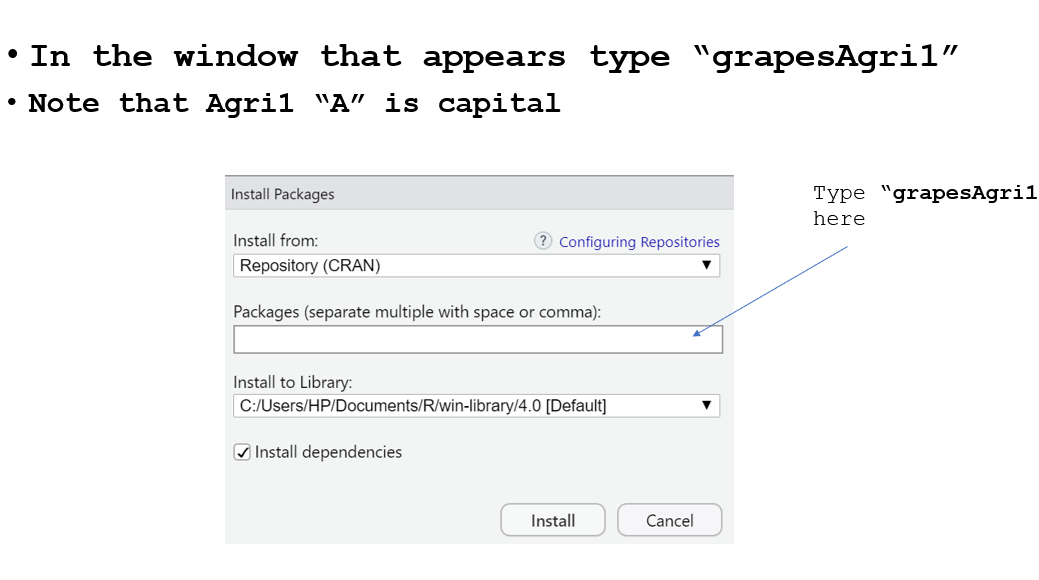
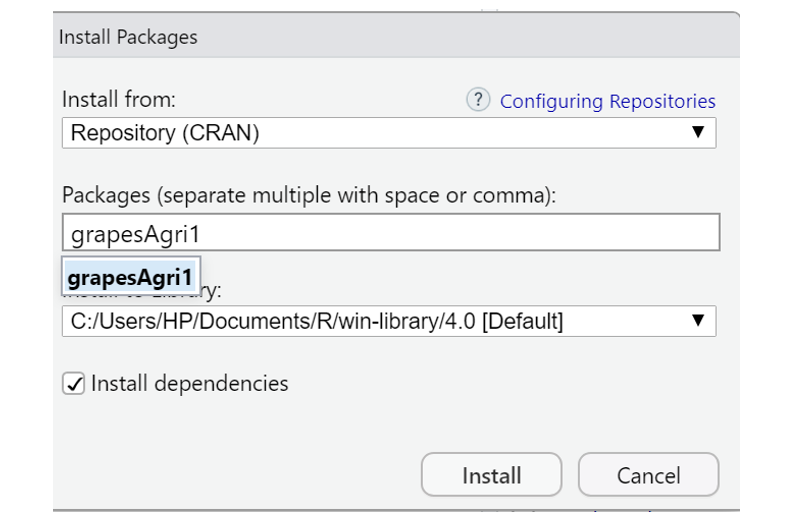
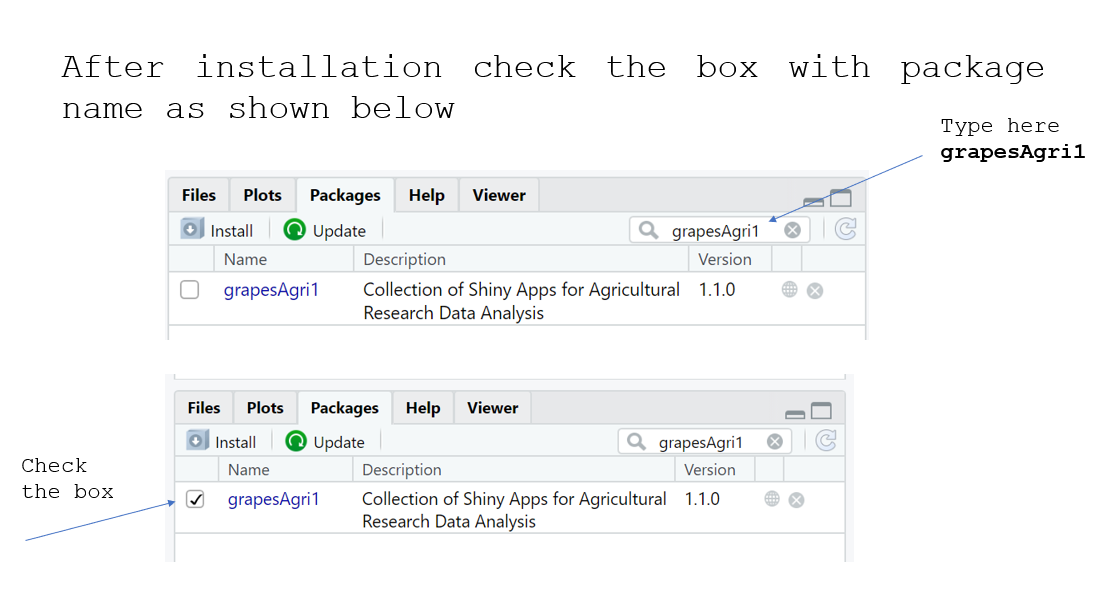
The packages can be installed using Rstudio User interface. Step by step installation of package grapesAgri1 is shown below. All other packages can be installed in similar way
- Step 1: Click on the install button as shown below
- Step 2: Type the name of the package in the window that appears
- Step 3: Select the package name and click install
- Step 4: Load the package name by clicking on the check box.
1.5 Agricultural applications, interpretation, and further practice
1.5.1 Why use a programming language?
A spreadsheet is convenient for recording observations. A script records the operations performed on them. If a corrected observation arrives, the script can repeat the same analysis. This makes a programming language valuable even for a modest experiment.
R evaluates instructions and stores results as objects. RStudio is an integrated development environment that helps edit scripts, inspect objects, and view plots. R and RStudio are installed separately; both are used in the practicals.
Download R from CRAN and RStudio Desktop from Posit. Follow the installer for your operating system. Open RStudio and create a project in a folder for the course. Keep raw data in data/, scripts in scripts/, and exported results in outputs/. Avoid hard-coded drive names so your work can run on another computer.
The Source pane holds saved scripts; the Console evaluates commands; the Environment pane lists objects; and the Files, Plots, Packages, and Help tabs provide supporting tools. Pane positions may differ. In the Source pane, Ctrl+Enter on Windows runs the selected code or current line. Save your script even when the commands also appear in Console history.
1.5.2 A first agricultural calculation
Suppose a 20-square-metre harvested plot produces 9.6 kg of grain. One hectare contains 10,000 square metres, and one tonne contains 1,000 kg.
grain_kg <- 9.6
plot_area_m2 <- 20
yield_t_ha <- grain_kg / plot_area_m2 * 10000 / 1000
yield_t_ha
[1] 4.8The answer is 4.8 t/ha. The expression makes the unit conversion explicit. It does not adjust for grain moisture, harvested border rows, or sampling errors; those require additional information. Names such as grain_kg help prevent unit mistakes.
<- assigns a value. A line beginning with # is a comment. R is case sensitive: grain_kg and Grain_kg are different names. The Console’s > prompt is not part of the code. A + prompt usually means that a bracket or quotation mark has not been closed; press Escape and inspect the command.
1.5.3 Packages and help
A package supplies functions, documentation, and sometimes datasets. Install a package once into an R library, then load it in each new session where it is needed. Installation should be a deliberate setup step, not part of rendering an analysis.
install.packages(c("dplyr", "ggplot2", "readxl"))
library(dplyr)
?mean
example(mean)
The notation dplyr::filter() calls a function explicitly from a package. It is useful when packages provide functions with the same name. For Bioconductor packages, use the current Bioconductor installation instructions and BiocManager; the old biocLite() approach in the earlier notes is obsolete.
1.5.4 Errors are information
“Object not found” suggests a misspelt name, an unrun assignment, or an object from a previous session. “Could not find function” suggests a misspelling or an unloaded package. “Cannot open file” suggests an incorrect relative path. Start with the first error and run a small piece of code that reproduces it. Restart R periodically and run your saved script from the beginning; this reveals hidden dependencies on old objects.
1.5.5 Practical 1 and exercises
- Create a course project and save a script containing the yield calculation. Change the harvested mass to 11.2 kg. State the new yield and its unit.
- Explain why
9.6 / 20is not yet a yield in t/ha. - Deliberately type
Grain_kg, read the error, and correct it. - Find the help for
sqrt()and calculate the square root of 144.
Chapter review. A saved script records an analysis; a project makes file paths portable; packages extend R; and units remain the analyst’s responsibility.
1.6 Live R laboratory
Your first agricultural calculation
Edit the code, then select Run R. The first run downloads R into your browser and may take a little time. Copy code also lets you use this example in RStudio.
yield_t_ha <- c(3.2, 3.8, 4.1, 3.5, 4.4)
mean(yield_t_ha)
range(yield_t_ha)
length(yield_t_ha)
Investigate. The five simulated plot yields have a mean of 3.8 t/ha. Change the last yield to 5.4. Predict how the mean and range will change before running again.
From the browser to your practical notebook
Record the input you changed, the output you obtained, and your interpretation. These live examples use base R and work independently. The full chapter examples, including package-based analyses, remain available with copy buttons for RStudio. Browser objects last until this page is reloaded; Reset code restores the editor text. Internet access is needed on first use; long or interactive desktop tasks belong in RStudio.